
Guides · 6 November 2026
Android anti-theft settings to turn on today (2026)
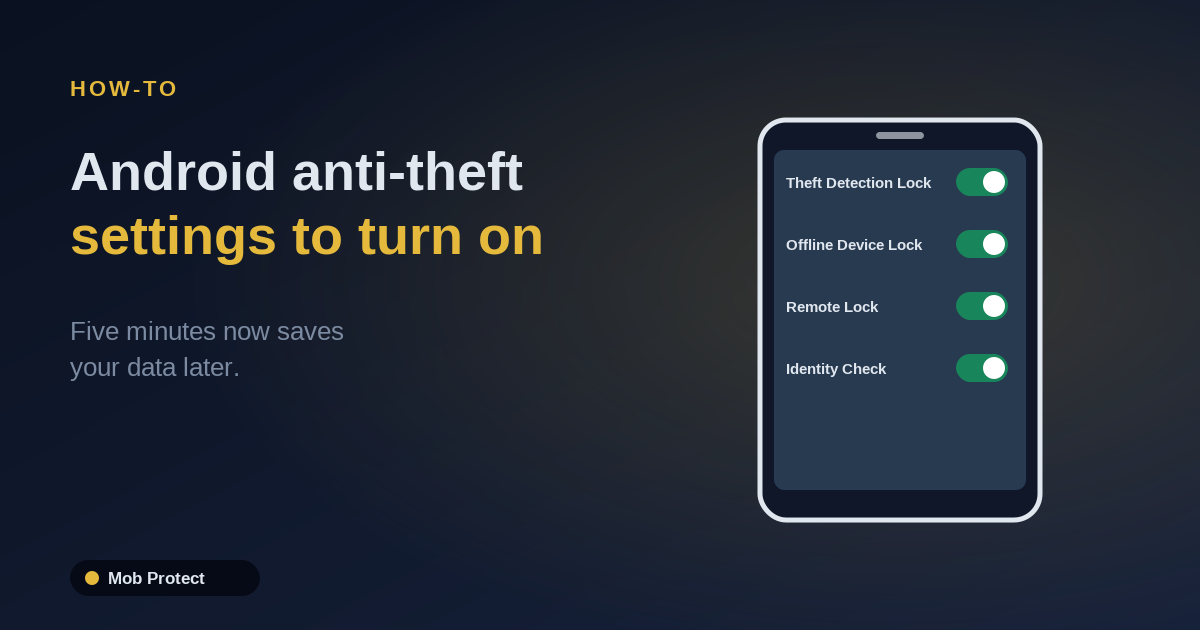
Android has strong anti-theft features built in, but some are off by default. Here's what to switch on, and where. It takes about five minutes.
On most phones you'll find them under Settings → Google → All services → Theft protection. You need a screen lock for them to work. On Samsung phones, look under Settings → Security and privacy as well.
Theft Detection Lock
Uses your phone's motion sensors to spot a snatch-and-run, then locks the screen immediately. It's designed for exactly the street snatch where someone grabs an unlocked phone. Turn it on in Theft protection.
Offline Device Lock
Thieves often switch off mobile data or Wi-Fi so you can't track the phone. Offline Device Lock locks the screen if the phone stays offline for a short while.
Remote Lock
Lets you lock your phone from any browser at android.com/lock using just your phone number. That's useful because you might not remember your Google password in a panic. You'll need to verify your number first.
Identity Check
When you're away from trusted places such as home, it asks for your fingerprint or face, not just your PIN, before sensitive changes like your Google password. A thief who watched you type your PIN still can't take over your account.
Protect sensitive settings
On Android 15 and later, switching off Find Hub or similar settings needs your PIN or biometrics. It's on by default when you have a screen lock.
Where Mob Protect fits
These settings protect your data. Mob Protect adds what they don't: encrypted audio and video evidence recorded while the phone is locked, alerts to trusted contacts with your live location, and a remote trigger your contacts can use. Use both together.